Overview
Agency Assistant is the all-in-one workspace for music booking agencies and independent artists. It replaces the combination of spreadsheets, email threads, Word documents, and separate invoicing tools that most music businesses rely on with a single connected system built around the way booking actually works.
One booking connects the whole show. Start with an enquiry, confirm the date, then review and send the contract and invoice when they are ready. Track payment and share approved show details with the artist in their portal.
Getting Started
1. Create your workspace
Sign up at the login page and choose your workspace type: Booking Agency (for booking agencies managing a roster) or Independent Artist (for self-managed artists; see the Independent Artists section). Public self-signup starts with a 14-day free trial with no payment details required until the trial ends. Workspaces created by an operator are permanently free and do not require a subscription or trial.
2. Configure your business details
Independent artist workspaces: use My Profile for your own artist details and Collaborators for people helping with bookings. There is no separate agency approving your profile or taking a booking commission. Your full performance fee is artist income before tax and expenses. The roster instructions below apply to agency workspaces.
Go to Settings → Business details and fill in:
- Name, logo, and legal address: used on contracts and invoices
- Bank and payment details: appear on invoices automatically
- Tax/VAT number: displayed on invoices
- Base currency: used for analytics and revenue summaries
- Email identity: choose your agency display name and Reply-To address. All transactional mail is sent from the shared platform address hello@agency-assistant.app, so you do not need a Resend account, sending-domain registration, DNS records, or email-provider credentials.
3. Invite your team
Go to Settings → Team and send invitations by email. Each team member gets their own login and is assigned one of four current roles:
- Admin: manages the workspace, team, booking automation workflows, and billing
- Agent: works with bookings and operations, including automation runs, itinerary publication, and manual travel records
- Finance: works with financial data where permitted, but does not manage booking automation or itinerary publication
- Read-only: view all data, no mutations
There are no per-user fees. Add your whole team at no extra cost.
4. Add your artists
Go to Artists and add your roster. Each artist profile holds contact details, genre, country, booking fee, media, riders, availability, and linked stage names (aliases). You can invite each artist to their own Artist Portal at any time.
5. Set up your pipeline stages
Go to Settings → Booking stages to customise the stages your bookings move through. Stages can cover early enquiries, negotiation, confirmed shows, and completed work. You can rename and recolour stages and reorder them. Artists see every stage of their linked bookings, including new requests and cancellations, with the same stage names and colors as your team. Disabling a stage does not hide existing booking history from the artist. The protected Confirmed, Completed, and Cancelled stages cannot be disabled or removed; stages that are no longer used can be migrated to another stage.
Shows & Pipeline
The Bookings section is the heart of Agency Assistant. The default lifecycle is Lead → Offer → Confirmed → Completed, with Cancelled as a separate outcome. Your workspace can rename, reorder, enable, or disable stages while completed bookings remain searchable and financial statuses stay separate from completion tracking.
Views
Bookings open in List by default, a simple table with the next step for each show. Switch to Board (drag-and-drop cards by stage) any time, and your choice is saved. Both views support filters by artist, stage, and date range. The Filters button shows how many filters are active so you always know when results are narrowed.
Stages and filters
Use the Active, Completed, and Cancelled worksets beside search and Filters to switch between current and finished work. On desktop, one compact Expected until Paid amount sits beside the stage chips. It counts booking fees before the Paid stage. It is not the invoice balance, which is tracked on the invoice.
Stage chips across the top of the board show where work is sitting and let you narrow the view in one click. Use Filters for artist, stage, date, and other shared criteria. The active filter count stays visible so you always know when results are narrowed. Custom stages are workflow labels, not a replacement for financial status or the separate booking-automation milestones.
Open More actions (the three-dot menu) for Export CSV or Booking guide. The guide explains your current stage names and the available colour and health indicators without crowding the booking view.
On an artist profile, More actions also contains Delete artist when your role allows it. Deletion still requires confirmation. On the staff History page, open Filters when you need to narrow the audit log.
Creating a booking
Click New Booking. The current form is ordered in sections: enter the event details and date first, add the performance schedule next, then complete Fee & payment schedule. For multi-artist shows, set each artist's performance slot and allocated fee; optional commission overrides are available per artist. Choose the agency workflow payment terms or configure a custom installment schedule. The booking then acts as the hub for related documents, contracts, invoices, itinerary, internal tasks, and travel records.
Performance times
Enter the performance start time and duration. The end time is calculated for you, including sets that finish after midnight. Changing the start time keeps the duration. Performance times use the workspace timezone, not your device timezone.
Booking detail sections
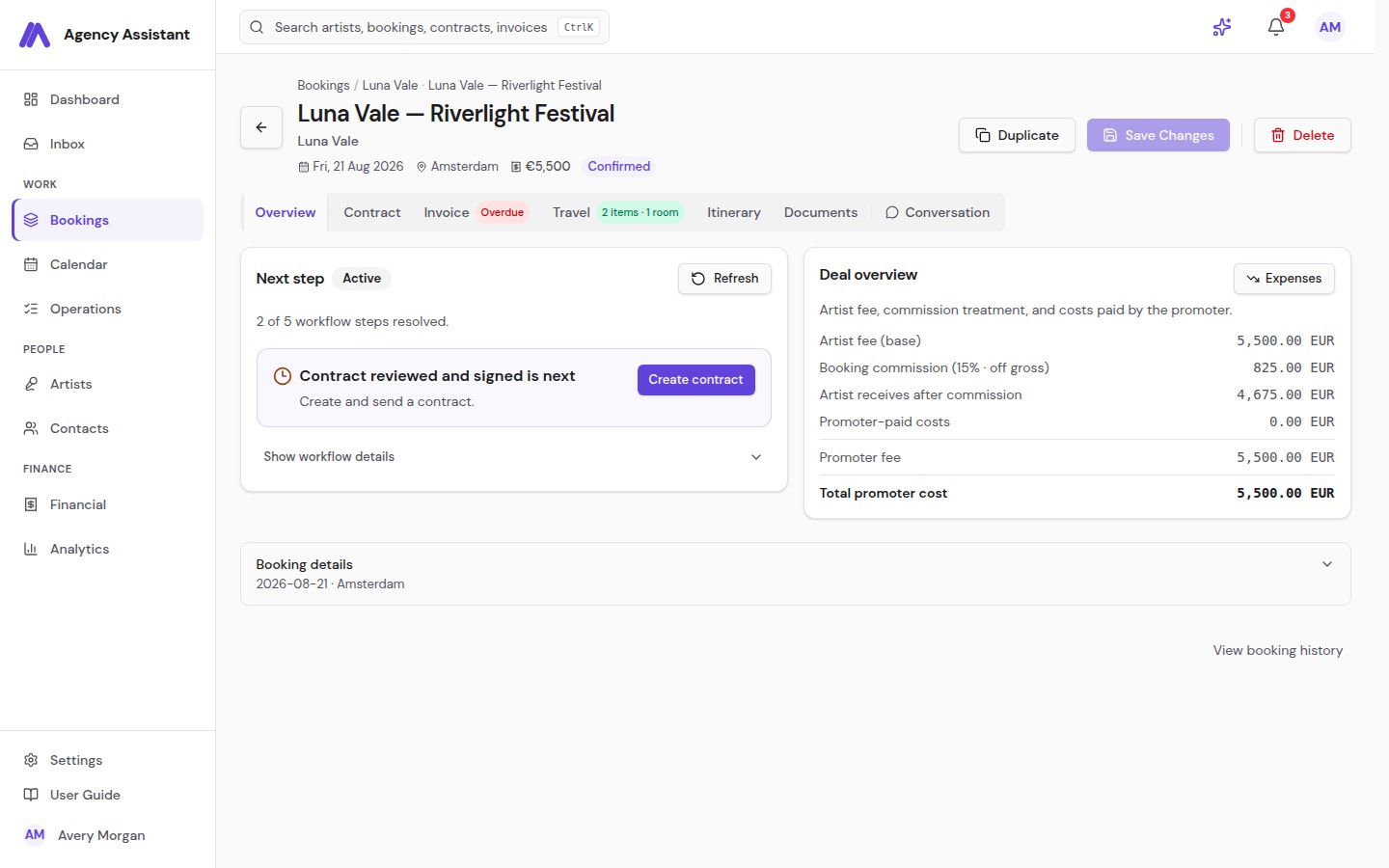
- Overview: core deal information, fee, commission, expenses, notes, custom fields, and status
- Itinerary: the artist-facing document, shared checklist, publication controls, and staff-only Internal Tasks
- Contract: linked contract with signing status
- Invoice: linked invoice with payment tracking
- Travel: flights, trains, buses, cars, ferries, and a separate Accommodations section for this show
- Documents: file attachments (press kits, settlement sheets, etc.)
- Conversation: show-specific messages with the artist, available only in agency workspaces
Overview, Contract, Invoice, Travel, Itinerary, and Documents are standard booking tabs. Agency workspaces also show Conversation.
Overview puts the next step and booking summary first. Expand Booking details for the full editing form. Additional information contains custom fields and only appears when there are fields to show. There is no empty panel to fill in when no fields are available. This layout is shared by agency and independent-artist workspaces.
One tab row keeps document and travel status beside the relevant sections. Use View booking history to open the Booking history dialog without leaving your work. To model the financial split, use Open Deal Calculator beside the fee details in Overview or Invoice; it is no longer a separate header button.
Per-artist fees and commission
On a multi-artist booking, the booking editor can store a separate fee and optional commission percentage for each artist. A blank override falls back to the booking-level commission, then the artist profile commission. The effective commission rate is shown in the booking context, and the commission treatment remains booking-wide: off gross deducts each artist's commission from that artist's allocated fee, while on top adds commission above the artist fees.
These allocations flow through invoice rows, artist statements, analytics, CSV exports, and contract calculations. Clearing an override restores the fallback, while existing single-artist and legacy bookings remain compatible.
Calendar
The Calendar page shows bookings, availability, appointments, and active holds in week, month, or year view. You can filter by artist or workflow stage, and subscribe to a live iCal feed in Apple Calendar or Outlook. Agency feeds cover one year back through five years forward; artist-filtered feeds keep that same window while limiting events to the selected artist. Treat the subscription URL as private: anyone with it may be able to read the feed.
Duplicate a booking
If you can edit bookings, open the existing booking and choose Duplicate. The Duplicate booking dialog always includes core details and the artist roster. Choose whether to include Travel & Accommodation and Attached files, then create the copy. Duplication is not a row action in List or Board view, and it is not available in the artist portal. Review the new date, venue, promoter, stage, and financial details before continuing.
Operations dashboard
The Operations section gives you a cross-roster view of itinerary readiness, travel, and internal tasks, useful for production managers and tour managers who need to see everything across all shows at once. It points you back to the relevant booking section to complete the work without losing the show context.
The Operations tabs are Tasks, Travel Tracker, and Itinerary Tracker. Tasks are staff-only to-dos across bookings. The Itinerary Tracker shows which artist-facing itineraries are not created, in progress, ready to publish, or published. Publishing makes the itinerary available to artists; emailing it is a separate action. Open a tracker to go to the exact booking that needs attention.
Booking Automation
Booking automation is a tracked coordination workflow, not unattended document sending. It follows the booking from confirmed details through contract review and signing, invoice review and sending, payment, and itinerary publication while preserving every existing staff approval gate.
Workflows and matching
Admins configure booking workflows in Settings. A workflow can match booking type, any linked artist, promoter, country, and pipeline stage. When more than one workflow matches, Agency Assistant chooses the most specific one, then the higher priority, then the workflow key. Complete booking is the built-in catch-all.
An enabled workflow starts automatically when a booking is created in, or moved into, its configured confirmed stage. An Admin or Agent can also start an unstarted workflow from the booking’s Booking automation card.
Steps, deadlines, and safeguards
Workflows choose the tracked outcomes, deadlines, contract and invoice templates, payment policy, recipients, checklist behavior, reminders, escalation, and portal behavior. Active runs use an immutable snapshot of the workflow and version that enrolled them; later workflow edits apply only to new runs.
Steps may be planned, active, blocked, failed, completed, skipped, not applicable, or manually completed. Deadlines and overdue states appear on the booking. Configured reminders, escalation tasks, and staff failure alerts keep exceptions visible. Contract steps also show the most recent reminder so staff can see when the promoter was last contacted.
Review, retry, waiver, and manual completion
Automation may prepare work and check current records, but configured gates still apply: review the contract and every required artist's file package, then explicitly approve sending; review and explicitly approve each invoice before sending; record payment receipt; and review itinerary readiness before an authorized staff member explicitly publishes it. A retry re-checks current booking records; it never resends a document or email. Stage visibility in the Artist Portal is separately controlled in Settings → Booking stages; an automation step or a sent email does not by itself make a show visible in the portal.
Where a workflow allows it, staff may waive a readiness item. Admins and Agents may also complete a blocked or active step manually, but must record a reason. Retries, waivers, manual completions, reminders, failures, and recoveries remain visible in the Automation log.
Changes after a workflow is complete
Completing a workflow records that the coordination process finished; it does not claim that the performance itself has taken place, that the invoice is paid, or that every later operational detail is unchanged. Completion is derived from the enrolled run's current required facts: if a required signature, payment, booking detail, or itinerary publication later becomes incomplete, the run can reopen or fail under its configured policy. The audit log retains the original completion and recovery events, and the system never silently reverses a pipeline stage that staff changed manually.
Deals, Holds & Conflicts
Before a show is confirmed, it usually starts as an enquiry, negotiation, option, or hold. These are all managed in the Bookings workflow using the stages your workspace has enabled.
Deal pipeline
A booking can move through configurable stages such as New Request → Negotiating → Option → Confirmed. Each stage change is logged in the activity trail. You can customise these stages in Settings → Booking stages.
Holds and options
A hold reserves an artist's date while you wait for confirmation. When multiple promoters want the same date, you can stack them as options: 1st option, 2nd option, and so on. The 1st option holder has priority. If a lower-priority option converts to a booking, higher-priority holds are released automatically.
Each hold carries an expiry date. When a hold expires, it is released and the date becomes available again. Expired holds are clearly labelled in Bookings and in the calendar. The system also warns you when a date clashes with an existing show, hold, availability block, or another stage name (alias) belonging to the same artist.
Availability and conflict outcomes
When you check a date, Agency Assistant considers the complete booking date range and every artist on the roster. An active booking or whole-act unavailable block produces Unavailable and prevents the write. An active offer or a conflict affecting an individual band member produces Review: you may continue, but the contributing reasons remain visible for a staff decision. With no contributing conflicts, the result is Available. The strictest result applies to a multi-artist booking, and the final guard is checked again when the hold or booking is saved.
Converting to a booking
When a deal is confirmed, move it to your confirmed stage. The same booking keeps its artist, venue, date, fee, commission, documents, and activity history. There is nothing to re-enter.
Contracts & Signing
Agency Assistant generates contracts from booking data and handles the full two-party signing workflow, so you never need to manage a Word document or chase a DocuSign link separately. From any shortcut or booking page, contract and invoice actions take you to the dedicated Financial review flow rather than sending immediately.
Contract templates
Create reusable contract templates in Settings → Document templates → Contract Templates. Templates support merge tags that automatically populate the artist name, venue, event date, fee, and other booking fields. You can include custom clauses, payment terms, and force majeure language.
Generating a contract
From any confirmed booking, go to the Contract tab and click Generate Contract. Select a template; the contract populates instantly from the booking data. You can edit the generated text before sending.
Promoter-facing contract files
When a booking has more than one artist, the draft contract prepares eligible promoter-facing files for every booked artist. Technical and hospitality riders and press kits are grouped and labelled by artist so your team can review the complete package in one place. Private artist files are not added to the contract or shared with the promoter.
Reviewing the complete package
Open Edit Contract and review each artist's files. Use Add file to include a booking-specific document, remove any file that should not be sent, or replace an outdated file by removing it and adding the current version. Check the artist label before approving each file.
If attachment review is required by the booking workflow, open View this artist's files and choose I've checked this artist's files for every artist. Changing the draft package makes earlier acknowledgements stale, so the affected package must be checked again. An unavailable or missing file is clearly flagged and sending stays locked until the package can be verified. Preview the PDF and review all artist groups before selecting Approve & send.
Two-party eSignature
Contracts require signature from both the agency and the promoter. The signing workflow:
- Your team prepares the final contract and sends the secure promoter link by email
- The agency and promoter can sign in either order; the promoter never needs an account
- The signing status clearly shows whether the agency, promoter, or both still need to sign
- Once both signatures are complete, both parties receive a countersigned PDF automatically
Terms & conditions
You can attach standard Terms & Conditions to contracts as a separate annex. Create reusable T&C templates and attach the relevant version to each contract type.
Invoicing & Payments
Open Financial from the main navigation to manage contracts, invoices, and artist statements. Invoices are generated from booking data in one click; Agency Assistant tracks payment status, handles credit notes, and supports multi-currency billing and VAT.
Creating an invoice
From the Invoice tab on any booking, click Create Invoice. The invoice pre-fills with the booking, promoter, component lines, and booking currency. A multi-artist booking can prepare a separate artist fee row for each booked artist plus an agency booking fee row when applicable. These rows make up one promoter invoice; Agency Assistant does not create a separate invoice per artist. Each artist row uses that artist's allocated fee and effective commission rate.
Invoice PDFs and printing
Invoice PDFs and browser printing place bank transfer details directly below the payment schedule, with the Agency Assistant logo aligned in the upper-right corner. There is no generated-date note in the footer. Ordinary invoices stay compact; longer notes or payment instructions continue onto another page when needed, without losing content.
Downloading or printing an invoice does not email it or mark it as sent. Use the reviewed email-delivery action, or confirm manual delivery separately after you have delivered it.
Independent artist invoices: your full performance fee is artist income, not an agency commission. New performance fees and standalone invoices use 9% VAT when no rate is saved. This is an app default, not tax advice. Review your actual saved rate, including 0%, and keep agreed terms and issued invoices unchanged.
VAT by component
Each artist-fee and agency booking-fee row has its own editable VAT %. New rows use the agency's sensible artist-fee and booking-fee VAT defaults, which you can review and change on an eligible draft. This lets different components use different VAT rates while every line stays in the invoice's single currency. Mixed currencies within one invoice are not supported.
Payment-plan invoices
For an invoice owned by a booking payment plan, the net amount, description, quantity, currency, and withholding stay locked to the agreed installment. VAT remains editable before sending, along with the invoice number, due date, notes, and billing details. Changing VAT updates the tax and total without changing the installment principal.
Stored lines drive every output
Invoice totals and VAT summaries are calculated from the stored component lines. The same lines flow through the on-screen preview, PDF and email attachment, Peppol output, and CSV exports, so review the rows and VAT rates before sending.
Once an invoice is issued, its stored component lines remain authoritative for historical reporting. Editing a booking later does not silently reprice a sent or paid invoice.
Sending and printing invoices
The Send and PDF / Print actions are always visible on each invoice row. Click them directly without opening a dropdown. Sending still requires opening the final preview, checking the stored component lines, totals, VAT, and recipient, then explicitly approving the review before delivery. For less common actions (void, credit note, billing details, payment history), use the ⋯ menu at the end of the row.
If the recipient cannot find an invoice email
Invoice emails sent through Agency Assistant come from hello@agency-assistant.app. Replies go to the Reply-To address selected when sending.
Ask the recipient to check junk mail and company quarantine. An email provider reporting delivery does not guarantee the message reached the inbox. Their mail administrator can trace it using the sender, recipient and sending time. Check this before sending another copy.
Invoice statuses
- Draft: working copy, not yet sent
- Sent: delivered to the promoter
- Overdue: past due date with no payment recorded
- Paid: fully settled
- Void: cancelled (preserved in the audit trail)
Payments
Record payments against an invoice as they arrive. Partial payments are supported. When the outstanding balance reaches zero, the invoice is marked Paid automatically. Each payment entry records the amount, date, reference, and method.
Online invoice payment
Admins can enable online card payment in Settings → Business details → Invoices & payments by connecting the agency's Stripe account credentials and webhook signing secret, then switching payment collection on. Keys are encrypted and only masked hints are shown after saving. Stripe is optional: bank-transfer instructions and manually recorded payments continue to work when online collection is off.
When enabled, an issued invoice email and PDF include a secure Pay invoice link. The promoter opens the public payment page without an Agency Assistant login, reviews the invoice and amount, and completes checkout with Stripe. The invoice is marked paid only after a verified Stripe webhook (the browser return is a fast fallback); void or cancelled invoices cannot be paid. The payment record keeps both the Stripe checkout reference and payment reference for reconciliation, and refunds are reflected in the invoice history.
Credit notes
If you need to reverse or reduce an invoice, raise a credit note against it. Credit notes are preserved in the audit trail and appear in your financial reports. Voided notes stay visible in a dimmed row so your finance team retains the full history without mistaking them for live documents.
Multi-currency
Bookings and invoices can be in any currency. Your analytics dashboard converts everything to your base currency using live exchange rates so your revenue reports are always comparable.
Financial exports
Open More actions on the Contracts or Invoices page for the available CSV exports. Individual invoice PDF and UBL/Peppol XML downloads stay with the invoice. These outputs preserve its stored component lines and per-line VAT treatment. Sending still requires approval in the dedicated financial review workflow.
Artist statements
Generate a financial statement for any artist covering a date range, showing their shows, gross fees, booking and management commission deductions, withholding, expenses, and net earnings. Use the quick-select date presets (This month, Last month, Q1 to Q4, This year, Last year) to jump to common reporting periods without typing dates manually. Statements can be downloaded as PDF and sent directly to the artist.
Itinerary, Show Day & Internal Tasks
Every booking has a built-in Itinerary workspace for preparing and delivering the show. It keeps three deliberately separate surfaces together: a shared checklist for artist collaboration, private staff-only Internal Tasks, and the published artist-facing Itinerary and Show Day document.
Itinerary templates
Create reusable Itinerary Templates in Settings → Document templates → Itinerary for different show types (club show, festival, theatre, etc.). Apply a template to a booking to pre-populate its timetable and notes, then adjust the details for that show.
Shared checklist
Inside the booking’s Itinerary tab, customise the Shared Checklist as production develops. These items are visible to staff and the artist, and can allow the artist to update status or notes. They are not promoter-facing and never appear in the PDF, email attachment, or public Show Day link.
Internal Tasks
Use Internal Tasks for staff work such as chasing a technical specification or confirming a hotel. Assign each task to a team member and track its completion from the booking or Operations → Tasks. Internal Tasks are never shown to artists or promoters and never appear in the published Itinerary, Show Day link, PDF, or email attachment.
Technical and hospitality riders
Riders are stored on the artist profile and can be attached to bookings and contracts. You can maintain separate technical and hospitality rider documents per artist and keep them updated independently of individual bookings.
Staff preparation versus the Itinerary
Internal Tasks and the Shared Checklist help your team prepare the show. The Itinerary is the reviewed artist-facing brief: schedule, contacts, venue information, travel, accommodation, and instructions you choose to publish. Private staff work is never exposed automatically.
Publish to Artist versus Send by email
Publish to Artist changes visibility in the Artist Portal (and the published Show Day projection) only. It does not send an email. For crew, suppliers, or the venue, create a read-only Show Day link containing only the logistics you have chosen to publish. Internal Tasks, private staff notes, booking finances, the Shared Checklist, and unpublished fields are excluded.
Send by email sends the approved itinerary snapshot only to the recipients you select. It does not publish, republish, or change the itinerary’s current portal/public visibility. You can select recipients from both Contacts and Artists without copying records, add a manual email address, and remove recipient chips before sending. Duplicate addresses are detected case-insensitively. The same recipient picker is used for itinerary, contract, and invoice emails.
Publication lifecycle
Review the Itinerary before publishing. Editing published artist-facing content (including timetable, contacts, notes, attachments, sharing settings, or template content) withdraws the published version and returns it to a ready-to-publish state. Emailing an itinerary does not republish it. After reviewing the edits, use Publish to Artist again to make the new version visible. Only the travel details you choose to publish are shared; staff notes, booking references, and private contacts remain private.
Travel & Logistics
The booking’s Travel tab stores transport for the show: flights, trains, buses, cars, ferries, and notes. Hotel stays are managed in the separate Accommodations section. On a multi-artist booking, assign travel and accommodation to the relevant artist. Portal visibility still depends on that artist’s access settings.
Travel records
Each travel record covers one leg of a journey. Fields include:
- Type: flight, train, bus, car, or ferry
- Departure and arrival: location, date, and time
- Reference / PNR: booking reference for the trip
- Carrier and flight/train number
- Notes: anything else the artist needs to know
- Confirmation file: upload the booking confirmation PDF
Flight details and safe sharing
Enter the flight number, travel date, departure and arrival airports, and confirmed times manually. You can also save terminal information, booking references, contacts, and confirmation files. Saved flight details remain available for manual editing; check them against your travel confirmation and update them when arrangements change.
Artists see only travel allowed by their access settings. Public Show Day links include only the safe logistics you explicitly publish, never private booking references, staff notes, or private contacts.
Accommodation
Log hotel bookings separately from travel. Each accommodation record includes hotel name, check-in/check-out dates, room type, confirmation number, and notes.
Travel overview
The Operations → Travel dashboard shows all upcoming travel across your roster sorted by date, useful for production managers monitoring multiple artists at once.
Artist Roster
The Artists section is your complete roster. Each artist profile is a hub for everything related to that act.
Your roster
Page titles, gutters, and toolbars are compact across staff and portal screens, so more rows fit on a laptop. The Artists page opens with Active artists in a sortable table on desktop and a readable list on mobile. Search by name or open Filters to narrow by genre or country, or choose Inactive or All Artists. Click an artist to open their profile.
Artist profile
- Contact details: email, phone, management contacts
- Genre, country, and booking fee
- Media library: photos, press kit, biographies
- Riders: technical and hospitality documents
- Internal notes and workspace-defined custom fields
- Booking history: all past and upcoming shows
Artist statuses
Set status to Active for artists you are currently booking, or Inactive to keep their profile and history without including them in the everyday roster. Inactive and All Artists are in Filters. Clearing filters returns to Active.
Availability
Mark specific dates as unavailable (holiday, personal, other commitments). These show as blocks in the calendar, helping you avoid double-booking enquiries.
Aliases (stage names)
Many artists perform under multiple stage names. Add aliases to an artist profile so the system can check for conflicts across all their names when placing holds. The Bookings list and artist roster show alias badges for easy identification at a glance.
Band members
Add individual band members to an artist profile (name, role, contact). Members can maintain their own availability calendars; whole-act blocks remain hard conflicts, while member-specific conflicts are surfaced as warnings for staff to review.
Artist portal access
Invite an artist or individual band member to the Artist Portal from the artist profile. Each invited email gets its own login, with clear pending and accepted status indicators so you can see who has access without sending duplicate invitations.
Directory: Contacts, Promoters, Venues
The Contacts section (in the main navigation) holds your full contacts database, organised across three tabs:
Use the search in the current tab for that category, or choose Search all to search people, promoters, and venues together. Selecting a result closes the shared search and opens the right tab and record.
On the Venues tab, open Filters for extra criteria. Values stay applied when you close the panel; use Clear filters to reset them. On the Promoters tab, open More actions → Import from Excel to import records.
- Individuals: individual contacts (freelancers, press, crew, and other people)
- Promoters: companies and promoter contacts linked to bookings and invoices
- Venues: venue profiles with capacity, address, and technical details
Workspace-defined custom fields can also appear on artist, booking, and contact records so your team can retain business-specific information without forcing it into notes.
Artist Portal
The Artist Portal is included with every account at no extra charge. Each invited artist or band-member email gets a secure login where they can see everything relevant to their shows without needing to call or text you.
What artists see
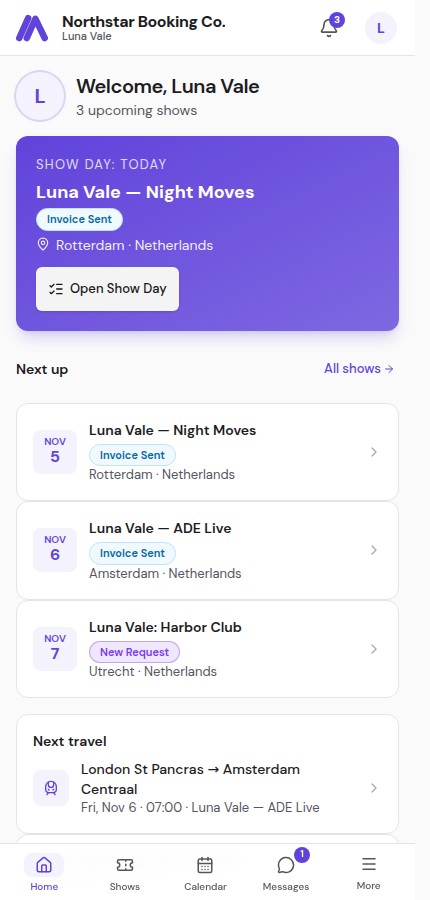
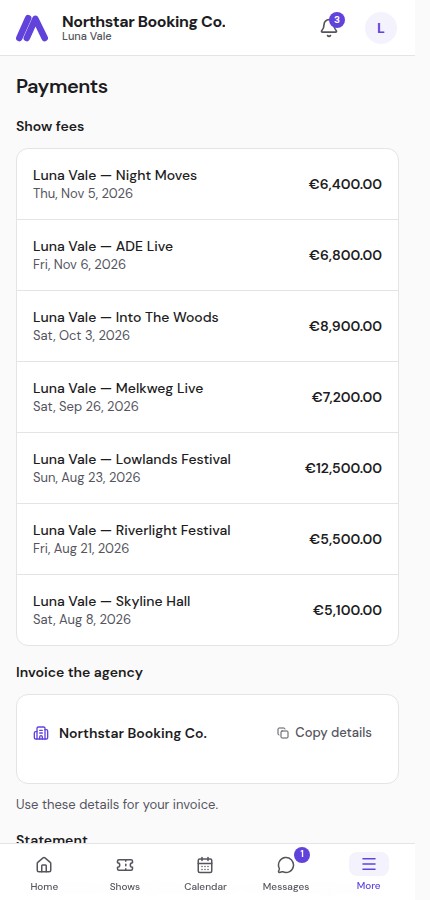
The portal includes the following destinations. On a phone, the bottom bar keeps Home, Shows, Calendar, and Messages one tap away; More opens Payments, Files, Travel, Profile, and Settings.
- Home: upcoming shows, RSVP requests, payment notices, recent messages, and time-sensitive file reminders
- Shows: every stage of the artist's linked bookings, from new requests and negotiations through completed and cancelled shows, using the agency's stage names and colors. Custom stages and historical disabled stages remain visible, and the stage filter helps find them
- Calendar: a personal calendar of visible shows and, when permitted, availability editing and tentative shows
- Messages: direct messaging with your booking team
- Updates: the header bell opens a paginated inbox for show, payment, travel, contract, and availability-request updates
- Payments: outstanding invoices, earnings history, downloads, payment follow-up, and date-range statements where permitted
- Files: personal documents, the agency library, and show documents, with upload/delete controls based on ownership and permission
- Travel: separately grouped Transport and Accommodation shared for visible shows; denied access shows an explanation rather than hiding navigation
- Profile: contact, emergency, passport-expiry, travel, dietary, hospitality, and technical preferences, plus approval history where required
- Settings: timezone, category preferences, email summaries, device push controls, and personal calendar subscription
Home shows the next unfinished setup step. Choose View all setup steps to see the full checklist. Time-sensitive file warnings remain visible when the checklist is collapsed. The Expected, Due to you, and Received summary opens Payments from one link.
Booking cards on Home and the booking detail header also show the actual stage. A new request is not a confirmed show. Seeing booking progress does not publish an itinerary or unlock protected travel, files, payments or messages. Those keep their own sharing rules and permissions, and calendar tentative permissions still apply.
Inside a show, map, call, and email actions sit with the relevant venue or promoter details when those details are shared. Open a travel card to see its details. Files and Travel remain available in the desktop sidebar and the phone's More menu, rather than the avatar menu.
From Calendar, artists can also block dates for holidays, studio time, and personal commitments. The agency sees those dates when placing holds and planning new shows.
RSVP confirmations
When you want an artist to confirm their availability for a proposed show, send them an RSVP invitation. The artist accepts or declines from the portal (or from the email link with no login required). Your team is notified of their response immediately.
Multiple stage names, one login
If an artist performs under multiple same-agency names (aliases), one portal login can access the linked aliases. The selector is in the avatar menu, and changing it reloads shows, payments, files, travel, and updates for that selected artist.
Quick access: Profile & Settings
Artists can tap their avatar or initials in the top-right corner from any page to reach Profile and Settings. On mobile, Payments, Files, Travel, Profile, and Settings are also grouped under More.
Updates, announcements, iCal & push notifications
The header bell opens the Updates inbox, where artists can filter unread items and mark all read. From Settings, artists choose update categories (Shows, Contracts, Payments, Travel, and Availability requests), set an Off/Daily/Weekly email summary, enable push separately on each browser or device, send a test push, set timezone, and manage their private iCal feed URL. Push notifications use generic lock-screen wording such as “Open the app to read” and do not expose message text, availability reasons, booking titles, artist names, contract titles, or signer names. Push and email preferences are per artist and per device; turning off one device does not change another.
Inviting artists
From any artist profile, open the Portal tab. Invite the artist and each eligible band member by email; every address gets its own login. Pending invites can be resent, accepted accounts are labelled, and matching same-agency artist profiles can be linked to an existing portal account instead of creating another one.
Analytics & Reports
The Analytics section gives you a real-time picture of your business across every artist and currency.
Dashboard
The Dashboard is your agency's home page. It opens with the most actionable information first:
- Needs attention: one compact list of pending documents, overdue invoices, availability requests, and missing contracts. Each row opens the relevant record. The list disappears when there is nothing to do.
- At a glance: foldable workspace totals showing monthly revenue, yearly revenue, open tasks, total artists, and outstanding invoice balance in your base currency
- Pipeline activity feed and upcoming show preview below
Fold sections you do not need right now. Your choices are remembered when you leave the page and return. Document names, artist or recipient details, status, and amounts stay visible without repeated review buttons.
Alerts
Open the bell to read alerts. Device notification choices are in Settings under Notifications. Opening an alert marks it as read; you can also mark all alerts read or clear the read ones. Read and clear actions apply only to your own staff account, including read-only accounts. Cleared alerts stay cleared, while new events can still generate new alerts. If a save fails, an error is shown so you can try again.
Revenue analytics
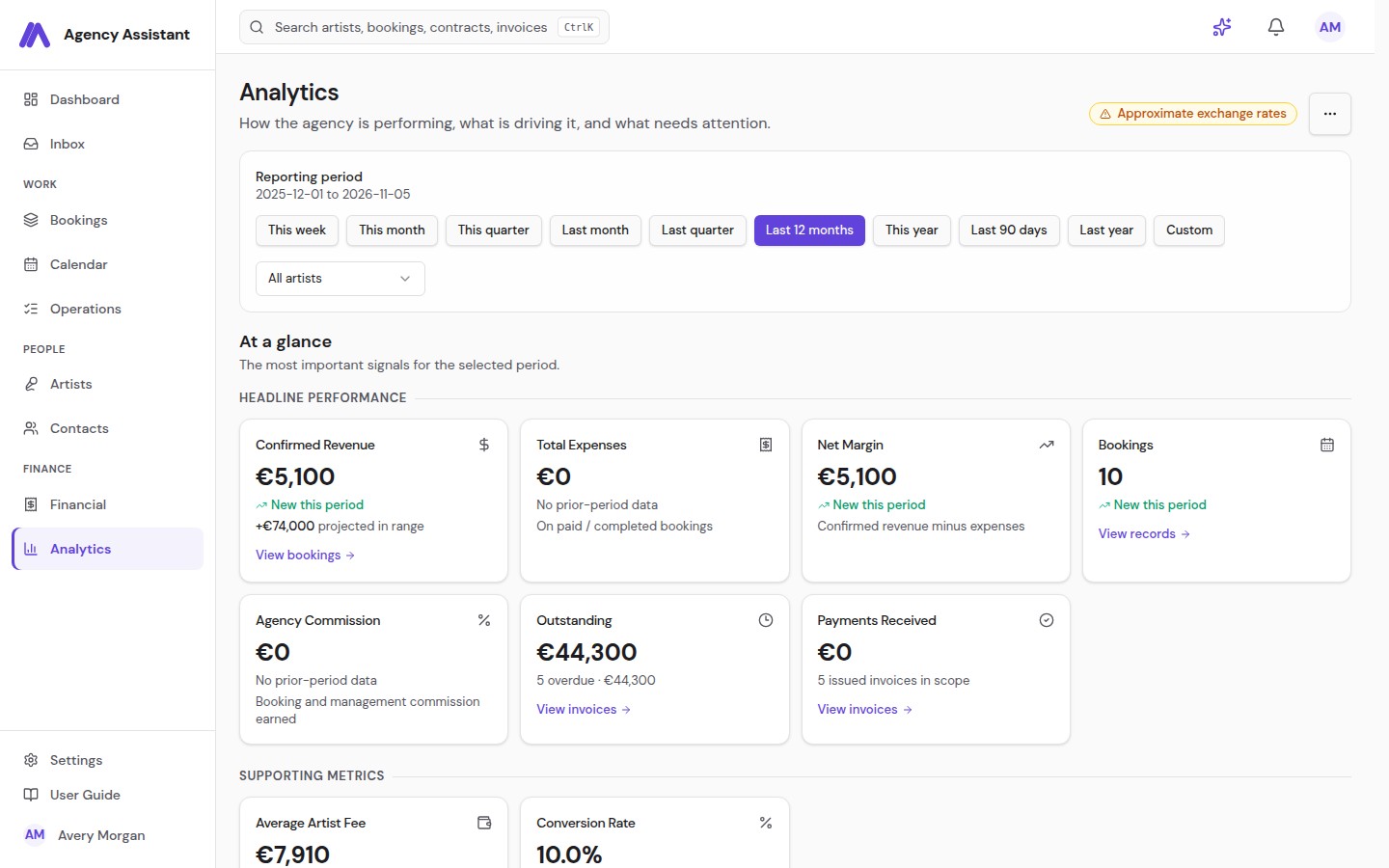
The Analytics page breaks down revenue by month, artist, genre, and venue. You can filter by date range and artist, then compare confirmed and projected revenue. All multi-currency amounts are converted to your base currency for comparison, including the combined outstanding-invoice total. Filter selections are automatically saved to the URL. Bookmark a specific view or share an exact report link with a colleague and they'll see the same date range and artist selection. Commission reporting separates booking and management commission so you can see the true earnings mix.
Booking trends
Monthly charts show booking volume over time: how many shows were booked, how that compares to previous periods, and where revenue is trending.
Analytics focuses on financial and booking results. Staff activity records are retained in the relevant record history, rather than a separate Team activity table here.
Revenue goals
Set annual or quarterly revenue targets and track progress against them in real time.
Exports
On Analytics, open More actions for CSV or PDF report exports. Main creation and review actions stay visible; less frequent imports, exports, and guides use the three-dot menu.
Export a full booking financial export as CSV covering all shows in a date range. The export includes gross fee, artist fee, commission, management commission, expenses, VAT breakdown by rate, and currency, ready for your accountant or finance team.
AI Assistant
Every account includes an AI Assistant with read-only lookups for supported booking, roster, deal, finance, task, CRM, expense, analytics, and agenda records. Click the sparkles icon in the top navigation bar to open it without leaving the page you are viewing.
What the AI assistant can do
- Answer questions about your data: "How many shows does Artist X have confirmed this quarter?" / "What's our projected revenue for October?"
- Draft offer and follow-up emails: describe the situation, get a polished draft
- Write production requests: summarise what you need from a venue and get a professionally worded request
- Chase payments: draft firm but diplomatic payment reminder emails
- Summarise your pipeline: get a quick overview of what's in each stage across your roster
- Help with contract language: ask for suggestions on clause wording or terms
- Prepare an internal task: ask it to propose a follow-up. It shows the proposed title, priority, due date, and linked booking for review. Nothing is created until you choose Create task; you can dismiss the proposal instead. The assistant cannot assign a task.
Live context and saved conversations
The assistant receives the current page and, where available, a record ID as navigation context; the page's full contents are not copied into chat. It can look up only the data exposed by its supported tools, so a page hint is not a promise that every record type can be fetched directly. Recent conversations are saved so you can reopen them, continue a follow-up, start a fresh chat, or delete a conversation you no longer need.
Review before action
The assistant's workspace lookups are read-only. Its only action proposal is an internal task, and that proposal remains review-only until you explicitly choose Create task; dismissing it does nothing. The assistant cannot create or change bookings, alter financial records, send documents, or send messages.
What the assistant cannot look up
The assistant reads saved records. It does not fetch artist availability, portal messages, document files, automation-run state, review acknowledgements, or portal visibility settings. Booking lookups may show saved booking details and linked travel/accommodation counts, not itinerary contents or travel details. It cannot verify whether a contract package, invoice, or itinerary has passed its current review gate; check the relevant booking or Financial workflow in the app.
Email guidance
The assistant can help draft email text and explain the delivery workflow, but it cannot send an email for you. Contracts, invoices, itineraries, reminders, and other transactional messages are sent only when you approve them in their normal review or send screen. Recipients see your agency display name with hello@agency-assistant.app as the From address, and replies go to the Reply-To address saved under Settings → Business details → Email identity. You never need to configure a custom sending domain, DNS records, Resend account, or provider credentials.
Tips for best results
- Ask where to find a setting or how to use the current dashboard, roster filters, or notification controls. The assistant can explain these screens, but cannot change filters, mark notifications read, or operate the interface for you.
- Be specific: mention the artist name, show date, and context
- Ask for a tone: "make it friendly but firm" or "keep it formal"
- Iterate: ask the AI to revise until it's right
Settings
Business details
Business details groups your workspace name, logo, legal address, VAT/tax number, bank details, base currency, timezone, email identity and optional online payments. Set the display name recipients see and the Reply-To address that receives their responses. Agency Assistant always sends transactional email from hello@agency-assistant.app; the From address is managed by the platform and cannot be changed. Individual team members can correct their own timezone in account settings. Rarely used controls are available under More options.
Team / Collaborators
Admins invite, remove, or change the role of team members from Team. Independent Artist workspaces label the same area Collaborators. Older workspaces may still contain legacy role aliases, but the current role choices are Admin, Agent, Finance, and Read-only.
Invoices & payments
Invoices & payments is part of Business details. Set tax and bank details here. Optional wording, numbering and reminder controls are under More options. Reviewed booking contracts supply the agreed financial terms for their invoices; changing defaults does not rewrite those terms or issued invoices. Standalone invoices retain their own defaults and review.
Document templates
Create and manage reusable templates in Document templates, which contains three sub-tabs:
- Contract Templates: templates with merge tags, custom clauses, and payment terms
- Terms & Conditions: reusable T&C annexes you can attach to any contract
- Itinerary Templates: reusable timetable and notes structures for different show types
Notifications
Turn on push notifications for this device from this panel. History-retention controls are under More options. Payment reminders and monthly statement settings are under Business details; optional booking-workflow reminders remain under Advanced customization. Artist-specific update and push preferences are managed in the Artist Portal so artists choose the alerts they receive.
Google Calendar connection controls and shortcuts are temporarily hidden. The app's Calendar and private iCal subscriptions for Apple Calendar or Outlook remain available. Saved connections are retained.
Booking stages
Admins can customise the stages your bookings move through. Rename, reorder, enable, or disable stages, and choose which stages artists can see in the portal. Some core stages are protected and cannot be removed. Admins also configure booking automation workflows in Settings; active booking runs keep the workflow version with which they started.
Booking workflow
Optional booking automation is under Advanced customization. The standard contract, invoice and itinerary process needs no workflow setup. Changing the workflow does not send documents or replace the required review and approval steps.
Subscription
Admins can manage the workspace subscription, billing interval, payment details, or cancellation where billing is available. Public self-signup workspaces use the trial and subscription flow; operator-created workspaces may not show a subscription or trial requirement.
Independent Artists
Agency Assistant offers a dedicated Independent Artist workspace for self-managed artists who handle their own bookings. It keeps the booking, finance, itinerary, travel, and portal tools that apply to a single act, with the same role gates as an agency workspace.
What's different
- My Profile replaces the Artists roster. Your own artist profile is pre-set
- New bookings are automatically linked to your profile with no artist selection step
- There is no staff Inbox or booking Conversation; communication surfaces that require an agency-to-artist boundary are hidden
- The Artist Portal link lets you switch to your own portal view. A workspace Admin may self-link only to the workspace’s sole artist
- Contract, invoice, Itinerary, Show Day, and Internal Tasks work the same way
- Settings → Collaborators (instead of Team). Invite managers or collaborators who need access to your workspace
Have a question not covered here?
Contact support